What Is Grok Imagine?
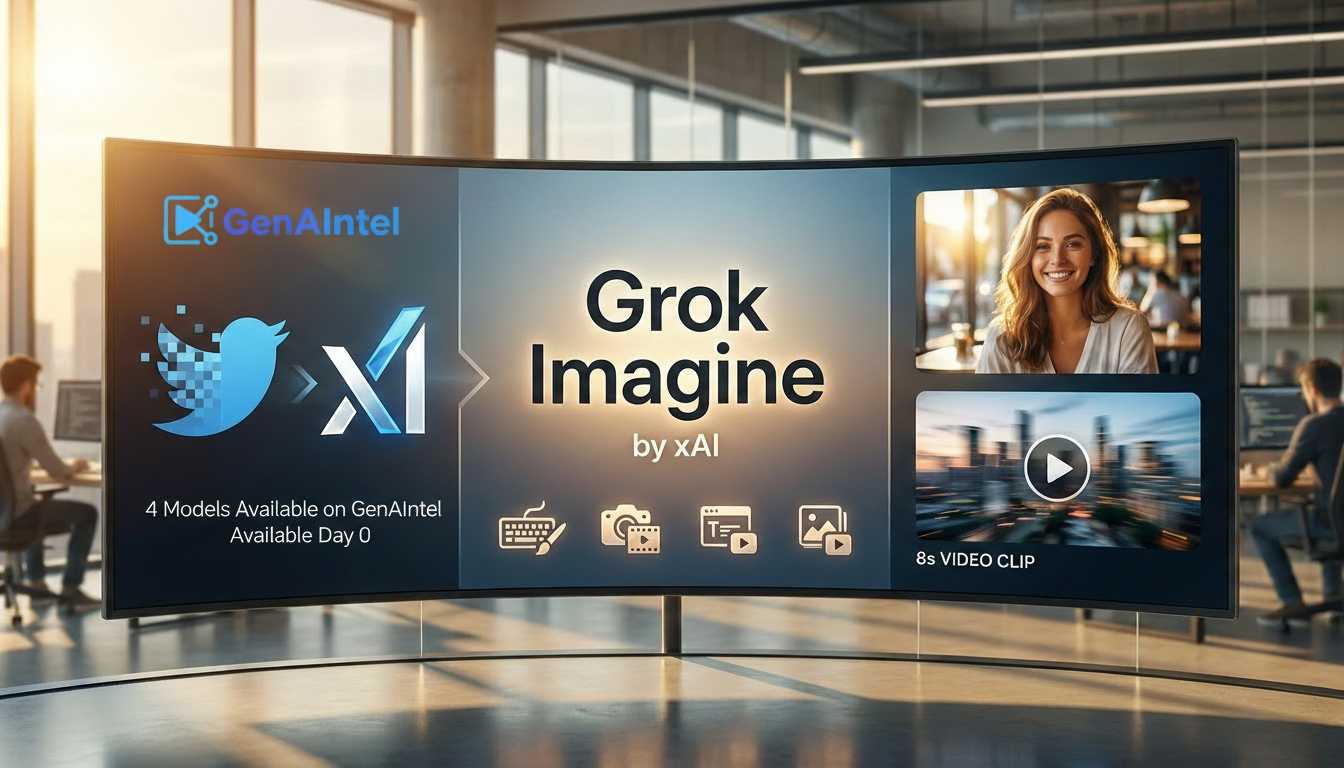
Grok Imagine is a multimodal generation system from xAI that creates photoreal images and short videos, and can also edit existing images and videos with simple instructions. It’s part of the broader Grok ecosystem available on Grok and inside X (formerly Twitter). Elon Musk’s xAI has recently expanded access by launching the Grok Imagine API and making the model family available on partner platforms—meaning you can now use it outside of X for the first time through integrations such as GenAIntel.
Official launch detail: xAI announced the Grok Imagine API on January 28, 2026, describing it as a unified bundle for end-to-end creative workflows, including video generation and editing. Read: Grok Imagine API announcement.
Grok Imagine 1.0 (February 2026)
As of February 2, 2026, xAI has announced Grok Imagine 1.0, which unlocks longer, higher-quality video and better audio. Key updates: 10-second videos (up from 8 seconds), 720p resolution, and dramatically improved audio—so dialogue, ambience, and sound effects align more naturally with the visuals. Videos are now longer and higher resolution, making Grok Imagine 1.0 better suited for social clips, product teasers, and short-form content.
Scale: Imagine has generated 1.245 billion videos in the last 30 days alone (as of February 2, 2026), reflecting rapid adoption since the API and partner launch.
Core Features (What Makes Grok Imagine Stand Out)
- ✨ Photoreal output from text — high-detail images and cinematic short videos.
- ⚡ Lightning-fast generation — designed for rapid iteration and creative exploration.
- 🎥 Dynamic animations with control — strong instruction-following for motion and camera direction.
- 🎨 Editing by instruction — add, remove, or modify objects and styles without rebuilding the whole scene.
- 📺 Grok Imagine 1.0 (Feb 2026) — 10-second videos, 720p resolution, and dramatically better audio (dialogue, ambience, sound effects).
xAI’s own announcement emphasizes best-in-class instruction following for video generation, plus powerful video editing like restyling, adding/removing objects, and controlling motion.
What’s Available on GenAIntel (4 Grok Imagine Modes)
On GenAIntel, Grok Imagine is available as a complete model family with four workflows—so you can create, edit, and animate without hopping between tools:
- Text-to-Image — generate stunning images from a single prompt.
- Image-to-Image (Editing) — upload an image and edit elements, style, or composition with natural language.
- Text-to-Video — generate dynamic short videos (Grok Imagine 1.0: up to 10-second, 720p, improved audio).
- Image-to-Video — animate a still image into up to 10-second 720p clips with precise motion control.
For developers, xAI’s docs show the underlying API models as `grok-imagine-image` for image generation/editing and `grok-imagine-video` for text/image video generation and edits. See: Image Generations docs and Video Generations docs.
Try Grok Imagine outside X (Twitter) — Day 0 on GenAIntel
Generate images, edits, and up to 10-second 720p videos using Grok Imagine 1.0 in the same workspace as 100+ other models.
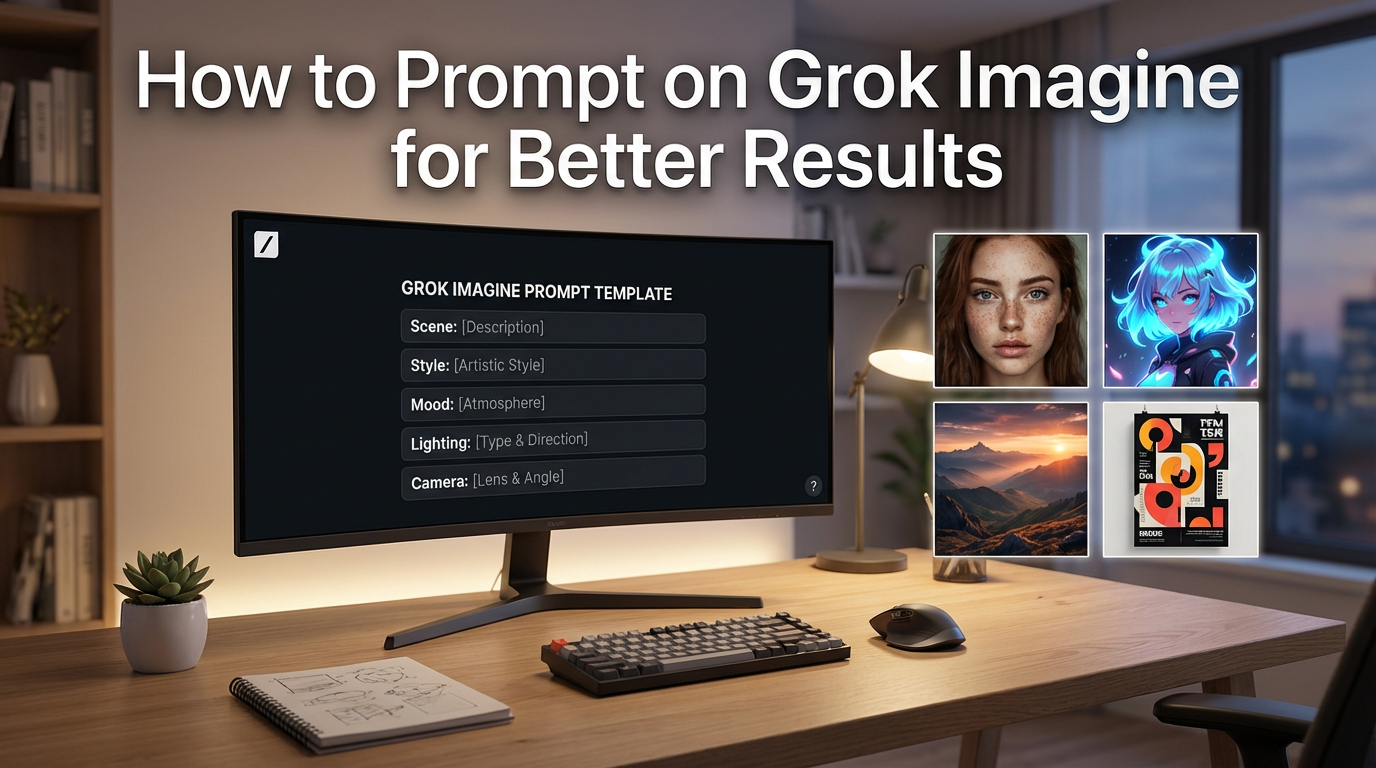
Quick Prompting Tips That Actually Improve Results
- Write prompts like a director: subject + action + setting + camera + lighting + mood.
- Use concrete motion verbs for videos: “slow dolly forward”, “smooth pan right”, “handheld sway”.
- For edits, lock what must not change: “keep the face, pose, and background unchanged; change only the outfit.”
- Iterate in small steps: change one variable at a time (lighting OR camera OR style).
- If you need speed, keep prompts shorter; if you need precision, add scene constraints and shot language.
A practical creator takeaway from community notes is that Grok Imagine responds well to specificity and benefits from a fast iteration loop—especially for short clips with audio. With Grok Imagine 1.0, you get up to 10-second videos, 720p resolution, and dramatically better audio; GenAIntel supports these workflows today.
For a full walkthrough of prompt structure, templates, and best practices, see our How to Prompt Grok Imagine guide. For background reading: Beginner tips thread and Beginner guide.
Examples: One Prompt for Each Grok Imagine Mode
Below are four copy-paste examples—one for each mode available on GenAIntel.
1) Text-to-Image Example (Photoreal Showcase)
Photoreal street-style portrait: an adult woman (25+) wearing a modern techwear jacket walking through a rainy city street at night, warm streetlamp reflections on wet pavement, soft rim lighting from behind, natural skin texture, shallow depth of field, 50mm lens, cinematic color grade, ultra-detailed, 16:9.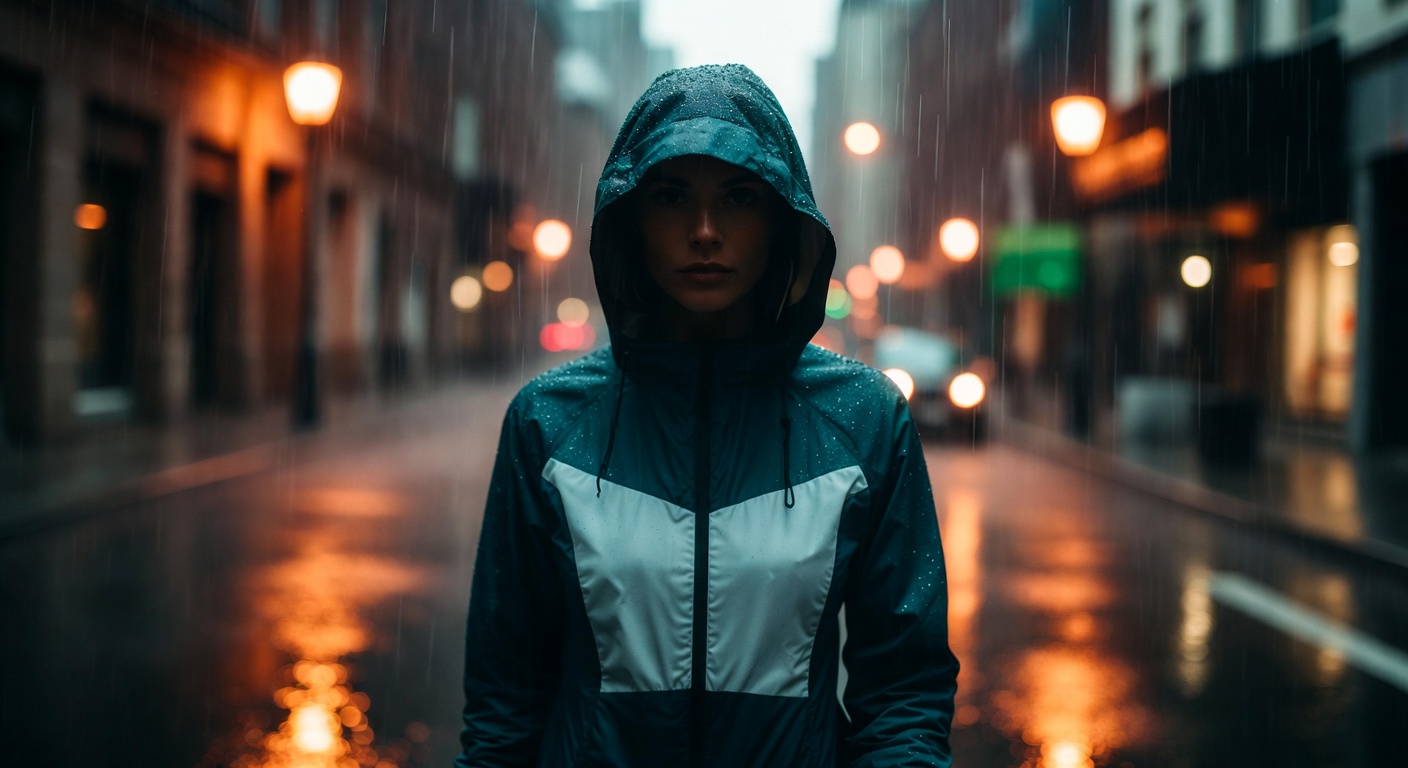
2) Image-to-Image Example (Editing / Restyle)
Use the first prompt to create a base image, then upload it and apply the edit prompt.
Product photo: a sleek ceramic coffee mug sits centered on a clean white table, soft daylight streams from the left, gentle shadows cast to the right, minimal background, eye-level camera angle, warm mood, 4K realism, 16:9.
Keep the exact same composition, camera angle, and mug shape. Change only the style to a premium cinematic product ad: darker moody background, warm tungsten key light, subtle rim light, richer reflections, and add a small gold logo on the mug that reads "AURORA" in clean sans-serif text.
3) Text-to-Video Example (Video Game Trailer Shot)
8-second 16:9 cinematic trailer shot: a lone adventurer sprints across a collapsing stone bridge above a medieval city, sparks and debris falling, camera follows with a smooth dolly forward tracking move then quick tilt up to reveal a massive dragon circling overhead. High-energy, crisp motion, dramatic side lighting, subtle film grain, epic trailer mood.4) Image-to-Video Example (Animate a Still)
Create a still image first, then animate it with a motion-focused prompt.
Cinematic key art frame for a fantasy RPG: an adventurer stands at the edge of a cliff overlooking an ancient floating castle above a stormy sea, dramatic clouds, lightning far in the distance, warm torch light on the character, ultra-detailed, 16:9.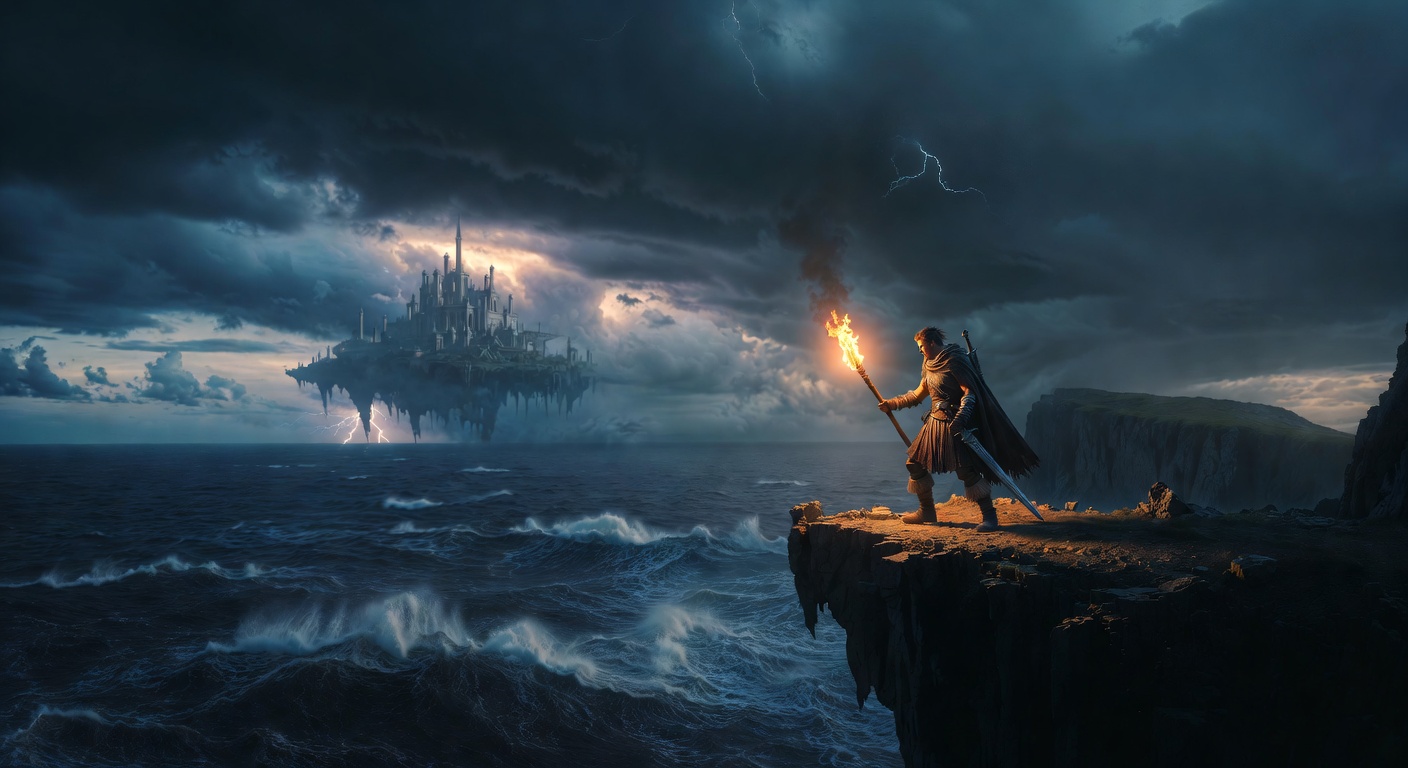
Using the reference image, generate an 8-second 16:9 cinematic shot: slow camera push-in toward the adventurer, cape and hair gently moving in the wind, clouds drifting, subtle lightning flicker illuminating the castle, sea mist rolling below, smooth motion, epic atmosphere.How to Start Using Grok Imagine on GenAIntel
- Open GenAIntel Studio
- Pick your workflow: text-to-image, edit an image, text-to-video, or image-to-video.
- Choose Grok Imagine from the model list.
- Run one generation, then iterate with small changes: lighting, camera motion, or style.
- Save your canvas so you can reuse them for future campaigns.
Create with Grok Imagine + 100+ models in one place
Run the same prompt across Grok Imagine and other top models to find the best style, fastest results, and cleanest output for your project.