Why Grok Imagine Prompting Feels Different
Grok Imagine responds especially well to prompts written as natural language — more like a short scene description than a pile of keywords. Instead of forcing a “tag list,” you’ll often get better results by writing a sentence that includes action, mood, time of day, and visual style. This is why some users get stunning cinematic outputs while others get “almost right” renders: the difference is direction, not luck.
This guide condenses practical prompting lessons from creator communities and beginner guides into a workflow that fits how people actually use Grok Imagine on GenAIntel: fast iteration, clean prompt templates, and easy switching between text-to-image, editing, text-to-video, and image-to-video.
Step 1: Think Like a Director, Not a Typist
A prompt that names an object usually creates an object. A prompt that directs a scene creates a moment. For Grok Imagine, the scene-first approach tends to produce more cinematic framing, richer lighting, and clearer intent.
Bad vs Better
- Weak: “A woman walking on a street.”
- Better: “Cinematic shot of a woman walking alone on a rainy Paris street at night, neon reflections on wet pavement, moody atmosphere, shallow depth of field, 35mm film look.”
Notice what changed: not “more detail,” but better direction — camera, lighting, mood, and environment.
Step 2: Use Emotion-Driven Adjectives
Grok Imagine reacts strongly to tone. If you describe how you want the viewer to feel, the model is more likely to deliver the intended vibe. Replace generic words (“happy,” “cool,” “nice”) with emotion and atmosphere (“nostalgic,” “melancholic,” “electric,” “tense,” “dreamlike”).
Prompt Template
Close-up of [subject] in [setting], [emotion/mood] atmosphere, [lighting], [camera/lens], [style keywords].Example
Close-up of a carefree young woman laughing under golden sunlight, wind moving through her hair, joyful and nostalgic mood, cinematic lens flare, warm color grade, shallow depth of field, 50mm lens look, photoreal natural light.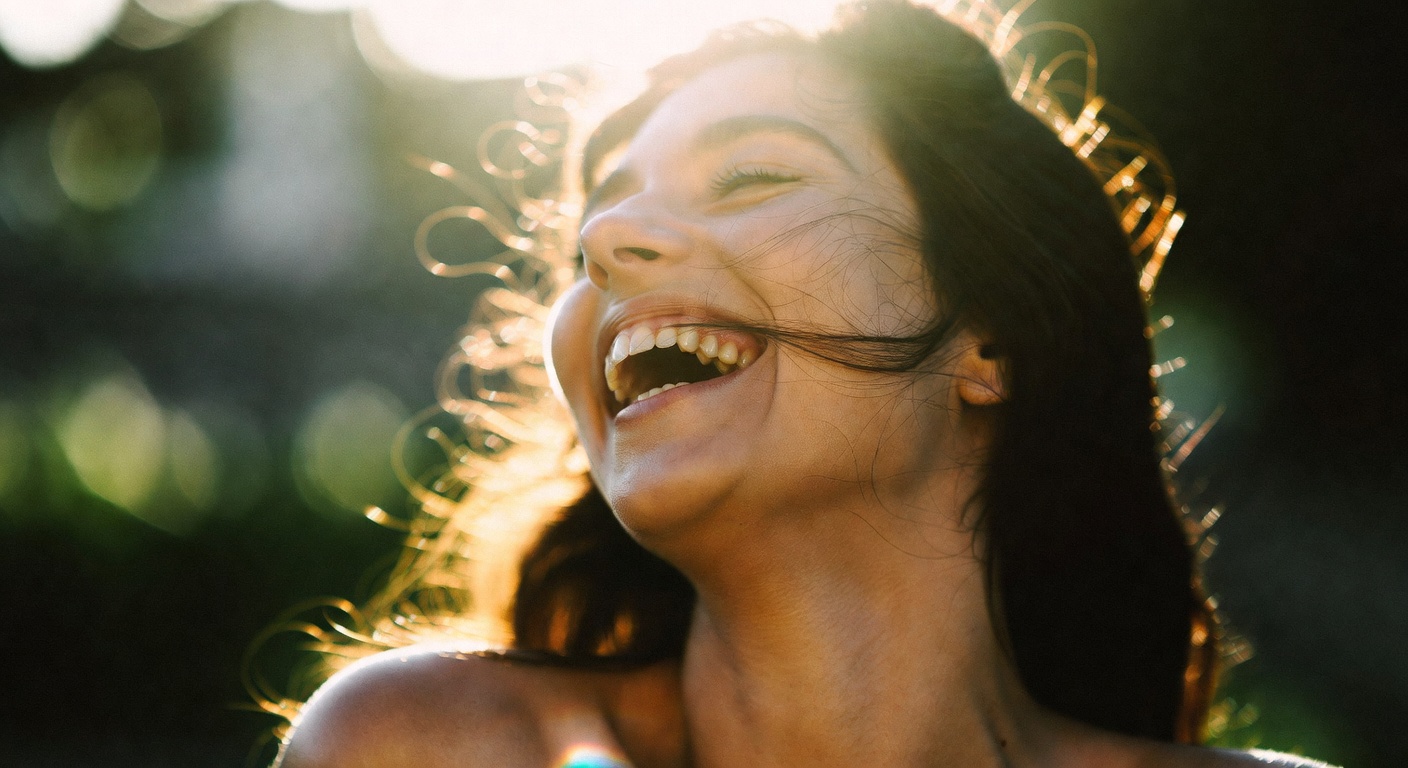
Step 3: Control Composition Like a Photographer
Composition is storytelling. Grok Imagine understands basic cinematic framing terms and responds well when you specify how the shot should be framed.
- Wide establishing shot: sets the world and scale.
- Low-angle shot: makes a subject feel heroic or imposing.
- Close-up: emphasizes emotion, texture, and intensity.
- Over-the-shoulder: implies conversation or tension.
- Shallow depth of field: isolates the subject; background becomes bokeh.
Example Prompts
Wide establishing shot of a futuristic city skyline at dawn, soft mist between glass towers, glowing reflections, calm mood, cinematic lighting, slow-pan feel implied, 16:9.Low-angle cinematic shot of a hero standing on a rooftop overlooking the city, wind pushing a long coat dramatically, sun flares behind silhouette, high contrast, epic mood, 35mm film look.Step 4: Use the Five-Part Prompt Formula
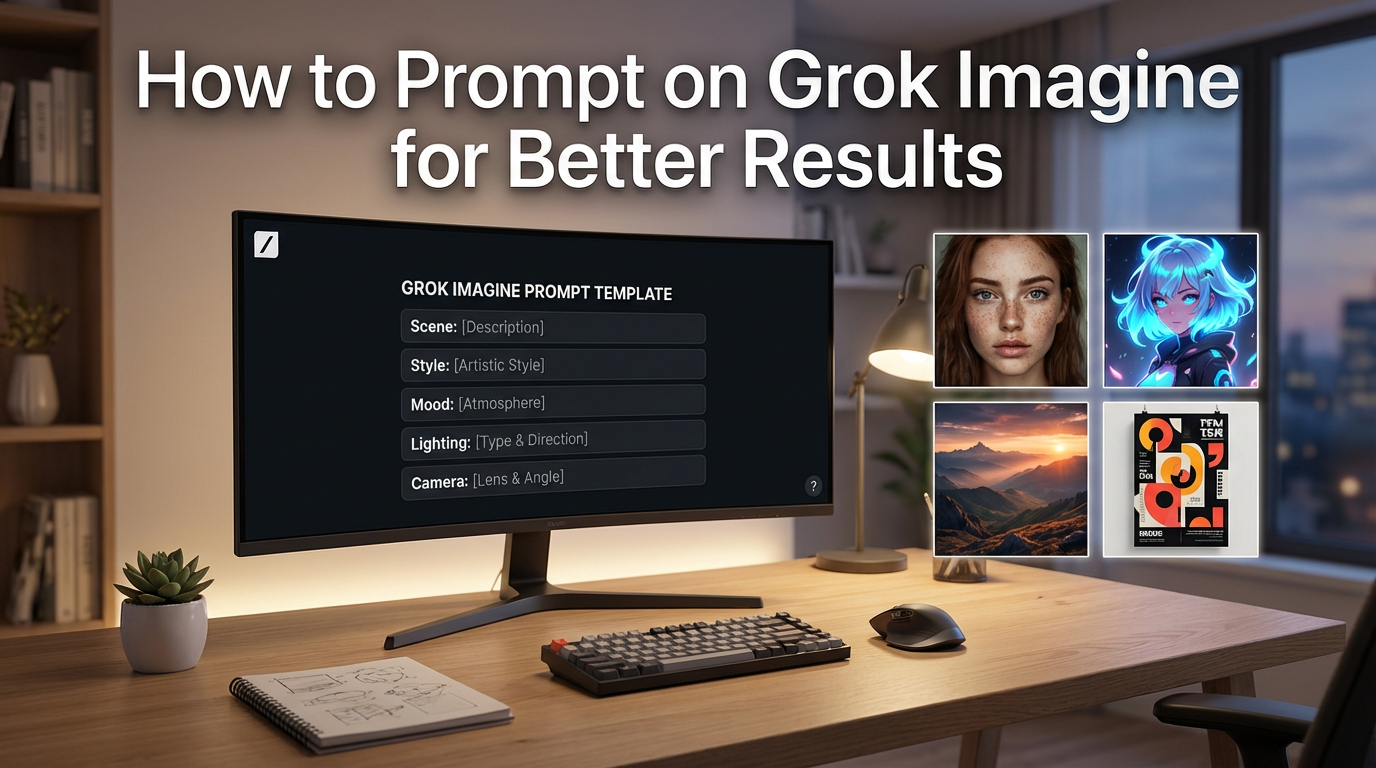
If you want consistency across projects (and fewer random results), structure helps. A simple formula works extremely well on GenAIntel because you can reuse it as a prompt template across Grok Imagine modes.
- Scene: what’s happening
- Style: visual aesthetic
- Mood: emotional direction
- Lighting: time of day / light quality
- Camera: shot type, lens, focus
Want to Try Grok Imagine with the Five-Part Prompt Formula?
Run Grok Imagine prompts, edits, and video modes in one place on GenAIntel
Scene: A lone samurai standing on a foggy mountain ridge. Style: cinematic realism. Mood: stoic and timeless. Lighting: soft dawn light with diffused mist. Camera: wide shot, 50mm lens feel, deep depth of field, 16:9.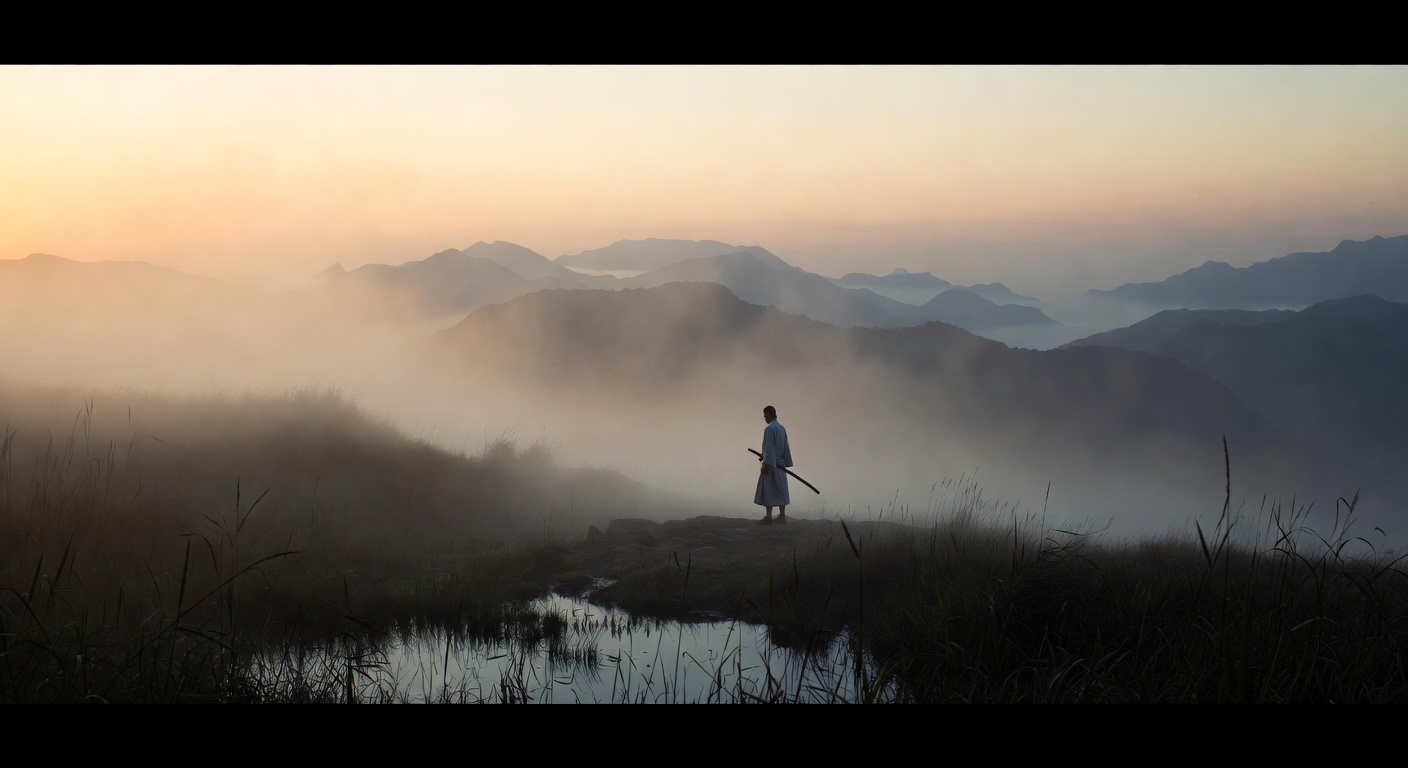
Step 5: Use Style Keywords (Realism, Anime, Cinematic, Surreal, Graphic Novel)
Grok Imagine responds well when you weave style words into a flowing sentence. You don’t need to “tag stack.” Instead, embed style cues naturally in the description.
Style Keyword Starters
- Realism: “photoreal detail”, “natural lighting”, “lifelike textures”, “documentary feel”
- Anime: “vibrant cel-shading”, “expressive linework”, “bright anime palette”
- Painterly: “oil-painting texture”, “lush brushstrokes”, “impressionist glow”
- Cinematic: “volumetric lighting”, “film grain”, “dynamic shadows”, “epic wide shot”
- Surreal: “dreamlike distortion”, “ethereal glow”, “otherworldly hues”
- Graphic novel: “inked outlines”, “bold contrasts”, “neon-charged lines”
Step 6: Editing Prompts (Image-to-Image) on GenAIntel
Grok Imagine isn’t just for generating new visuals. On GenAIntel, you can upload an image and apply precise edits with instructions. The key is to explicitly lock what should stay the same, then list changes clearly.
Base Image Prompt
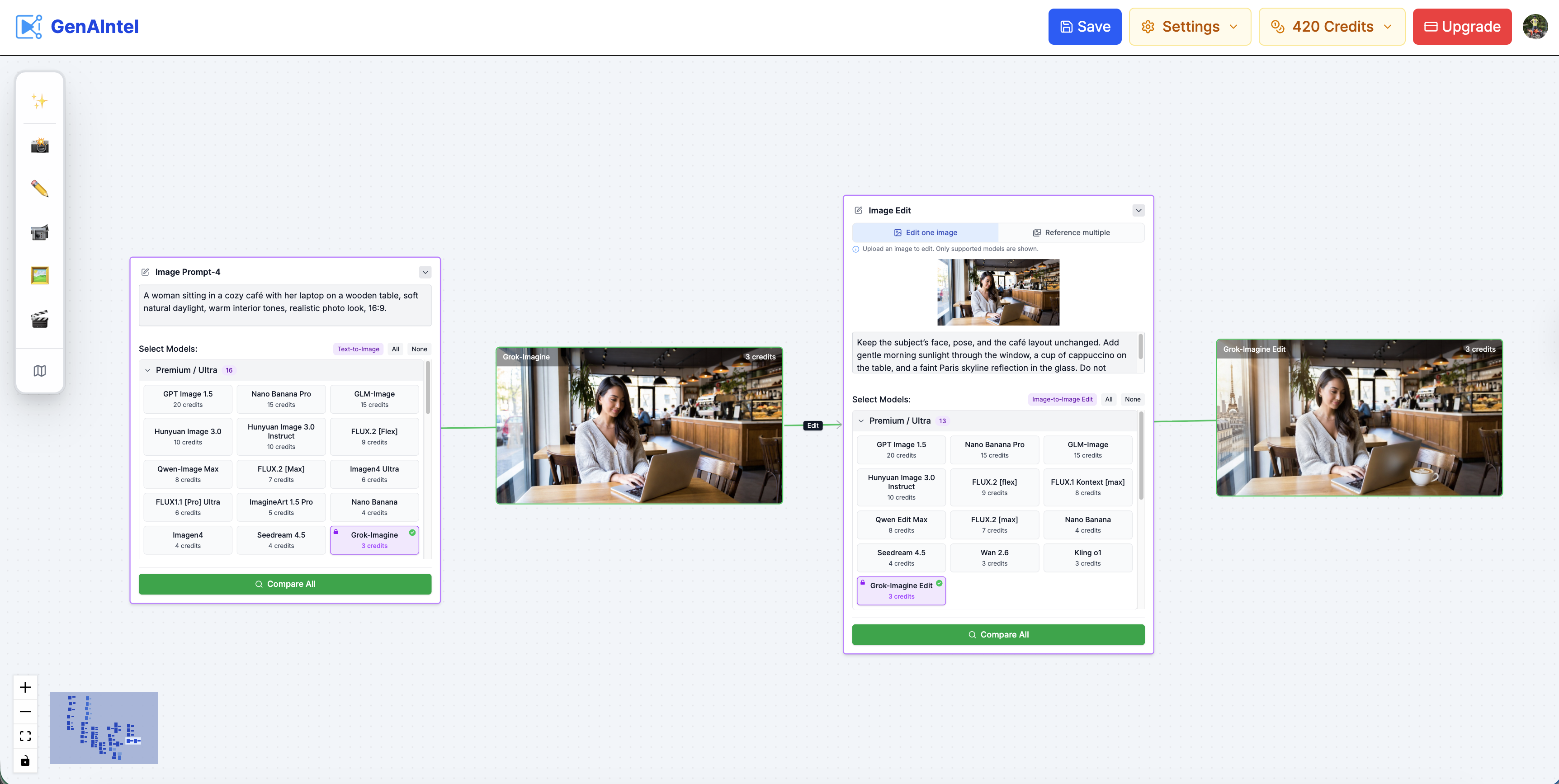
A woman sitting in a cozy café with her laptop on a wooden table, soft natural daylight, warm interior tones, realistic photo look, 16:9.
Edit Prompt
Keep the subject’s face, pose, and the café layout unchanged. Add gentle morning sunlight through the window, a cup of cappuccino on the table, and a faint Paris skyline reflection in the glass. Do not change camera angle or composition.
Showcase of the image edit flow on GenAIntel
Step 7: Iteration That Actually Works (The “Small Changes” Rule)
Don’t expect perfection in one pass. The fastest way to improve results is to iterate with small targeted changes. Keep the core scene stable, and adjust one variable at a time: lighting, camera framing, mood words, or one key detail.
- Version 1: “Portrait of a woman with flowers.”
- Version 2: “Portrait of a woman holding yellow tulips under warm light.”
- Version 3: “Cinematic portrait of a woman holding yellow tulips, shallow depth of field, 85mm lens look, gentle morning glow.”
Common Mistakes That Cause “Almost Right” Results
- Tag stacking: lists like “knight, castle, epic, 8K” often produce generic results. Use a sentence with intent.
- Weak verbs: “standing” is fine, but “surges”, “unfurls”, “shatters”, “rushes” imply motion and drama.
- Missing time and weather: cues like “at dusk”, “in heavy rain”, “fog drifting” add atmosphere instantly.
- Vague aesthetics: if you don’t specify style, you’ll get mixed results. Add one style direction.
- Overloading modifiers: too many conflicting adjectives can confuse the output—pick a clear mood and commit.
Quick Copy-Paste Prompt Pack (6 Styles)
These prompts are written as narrative sentences with embedded style keywords—optimized for Grok Imagine’s natural-language strengths. Swap the subject to fit your project.
Want to Try the Copy-Paste Prompt Pack?
Run Grok Imagine prompts, edits, and video modes in one place on GenAIntel—then reuse your best prompt templates across projects.
A weathered sailor grips a ship’s wheel at twilight, salt spray clinging to his beard as waves crash against jagged cliffs, captured with photoreal detail and natural lighting, documentary feel, 16:9.A young mage summons a whirlwind of cherry blossoms at sunrise, eyes blazing with resolve as petals swirl around her, captured with vibrant cel-shading and expressive linework, bright anime palette, 16:9.A lone violinist plays atop a crumbling cliff at sunset, notes drifting over a valley of golden wildflowers, captured with lush brushstrokes and an impressionist glow, warm romantic mood, 16:9.A warrior queen charges through a battlefield at dawn, blade slicing mist as banners snap in the wind, captured in an epic wide shot with volumetric lighting, dynamic shadows, subtle film grain, 16:9.A figure of woven starlight dissolves into a desert where dunes ripple like liquid dreams, captured with dreamlike distortion and ethereal glow, otherworldly hues, 16:9.A cyberpunk rebel leaps across neon-lit rooftops at midnight, sparks trailing her boots as city lights pulse below, captured with inked outlines, neon-charged lines and bold contrasts, 16:9.How to Use This Guide on GenAIntel
- Save the Five-Part Prompt Formula as a reusable template.
- Generate 3–5 variations quickly by changing only one variable per run (lighting OR camera OR mood).
- Use image-to-image editing to improve a good result instead of regenerating from scratch.
- If you’re generating videos, keep prompts short for motion stability and focus on camera + action + ambience.
- Store your winning prompts as a library so your future projects start from proven inputs.