What is Seedream 5.0?
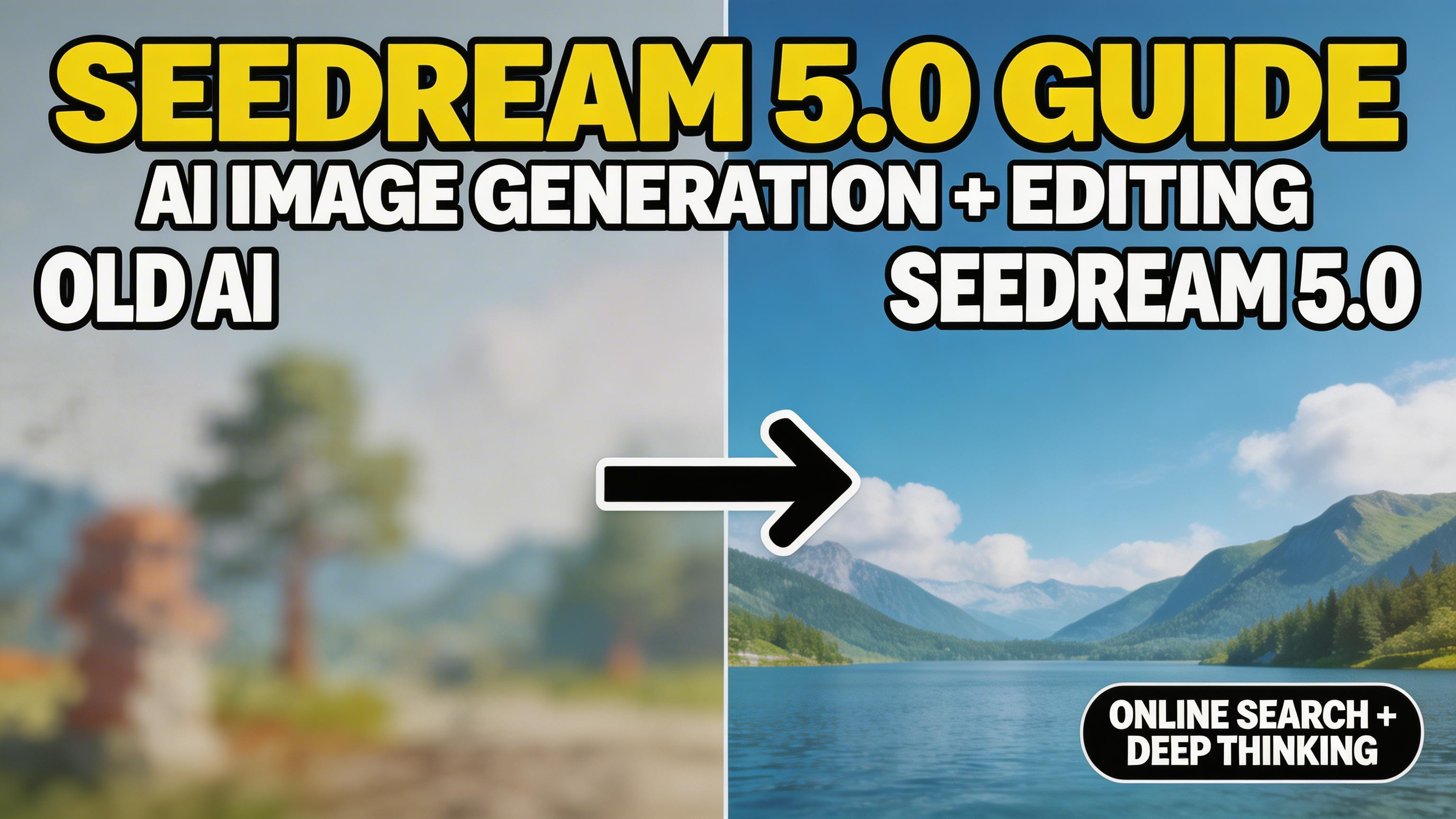
Seedream 5.0 is ByteDance’s newest image generation model designed to do more than “draw what you say.” It’s built for intent-aware creation—understanding what you’re trying to achieve, then helping you execute with stronger control over style, layout, and details. The headline upgrade is a unified multimodal approach that adds deep thinking plus built-in online search, allowing the model to generate visuals tied to current topics and real-world context more reliably.
The official Seed model page describes Seedream 5.0 (and the public-facing Lite variant) as a unified multimodal image model with deep thinking and online search capabilities, with upgrades in understanding, reasoning, and generation. See the official pages: Seedream 5.0 Lite and the launch blog post Introducing Seedream 5.0 Lite.
Try Seedream 5.0 on day 0
Generate trend-aware images and make precise edits with Seedream 5.0 inside GenAIntel—plus compare results with other top models in the same workspace.
Seedream 5.0’s standout features
Seedream 5.0 is positioned as an “intelligence-first” image model: better understanding, better control, and better reliability on tasks where older models struggle—especially layouts, factual context, and targeted edits.
- Deep thinking + intent understanding: Better interpretation of complex prompts, multi-step instructions, and the “why” behind your request (not just the nouns).
- Built-in online search for real-time visuals: When prompts reference current events, trending topics, brands, or time-sensitive details, Seedream can retrieve context during generation to stay current.
- Precise control over layouts and details: Stronger results on structured designs—posters, product mockups, UI-like layouts, diagrams—where composition and hierarchy matter.
- Editing that preserves what you want: Targeted changes without redoing the entire image—useful for product swaps, lighting changes, wardrobe changes, background updates, and style shifts.
- Multi-reference workflows: Supports up to 10 multiple reference images to keep brand style, subject identity, or composition consistent across a set.
- High-resolution outputs: Seedream 5.0 supports 2K-class outputs and higher resolutions depending on settings and provider.
Examples: Seedream 5.0 Prompts
Below are examples that highlight Seedream 5.0’s strengths: structured layouts, intent understanding, and precise edits.
Example 1: Trend-aware editorial poster (structured layout + clear text)
A clean editorial poster about "AI Trends 2026" with a modern grid layout: big title at the top "AI Trends 2026", subtitle "What’s rising this month", and three sections with small icons and short labels: "Creators", "Design", "Video". Minimal Swiss design style, high contrast, crisp readable typography, white background with one accent color, 4:5.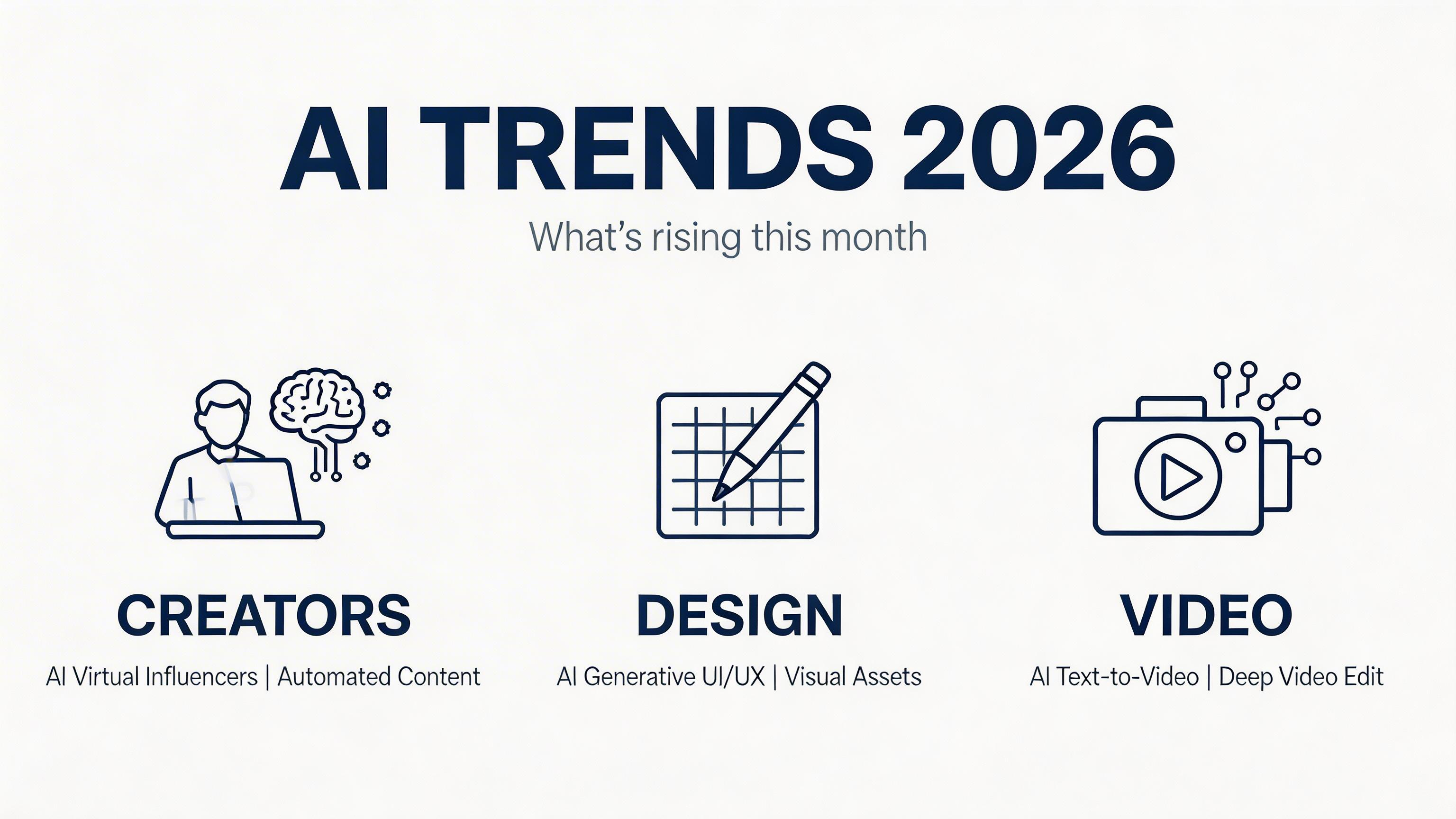
Example 2: Product hero shot with exact composition instructions
Photoreal commercial product hero shot of a matte ceramic perfume bottle on a light stone surface. Composition: centered bottle, soft shadow to the right, negative space above for copy, subtle warm rim light, clean studio background, shallow depth of field, premium advertising style, 16:9.
Example 3: Image editing that preserves identity and composition
Create a base image first (or upload your own), then apply the edit prompt. This demonstrates precise editing: changing specific elements while preserving what matters.
Photoreal photo of a person holding a plain white tote bag in a bright minimal room, neutral daylight, simple background, centered framing, 16:9.
Keep the person’s face, pose, and the room unchanged. Change only the tote bag design: add a clean black logo that reads "SEEDREAM" in bold sans-serif, plus a small minimalist leaf icon above the text. Maintain realistic fabric texture and natural shadows. No other changes.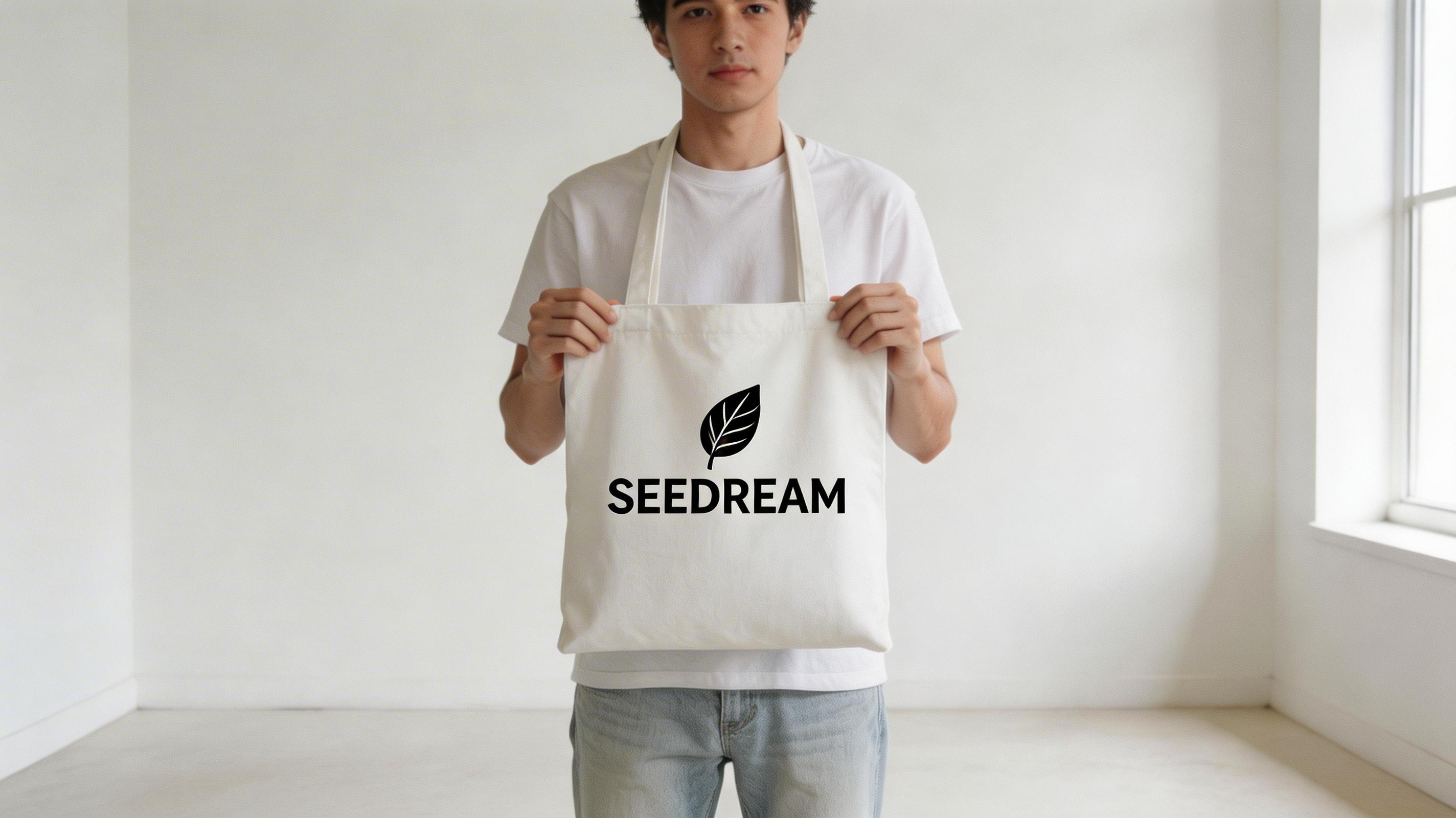
Need accurate, layout-controlled images fast?
Use Seedream 5.0 for structured visuals and precise edits, then compare results with other top models in the same GenAIntel workspace.
Day-0 availability on GenAIntel
Seedream 5.0 is available on GenAIntel on day 0—meaning you can use it as soon as it’s officially accessible via supported providers. On GenAIntel, the two workflows available today are:
- Text-to-image (generate from a prompt)
- Image-to-image editing (upload an image and apply targeted changes)
This makes it practical for creators who want trend-aware visuals and high-control editing without waiting weeks for tools to catch up.
The big differentiator: online search for trend-aware images
Most image models can only “know” what they learned during training—so they struggle with fresh trends, newly released products, last night’s news, or shifting cultural moments. Seedream 5.0’s online search is designed to reduce that gap. When your prompt implies that up-to-date info matters, the model can retrieve context to generate more timely visuals.
This is especially useful for marketing teams and creators who produce content around current moments: seasonal campaigns, trending aesthetics, new product launches, or timely memes—without needing to manually assemble references for everything.
Seedream 5.0 vs Flux 2 and Nano Banana Pro (when to use what)
Seedream 5.0 enters a crowded top-tier landscape. Two common alternatives creators compare against are Flux 2 and Nano Banana Pro.
- If you want trend-aware generation: Seedream 5.0’s online search is a strong fit for timely visuals and context-sensitive imagery.
- If you want brand layouts and design-heavy outputs: Flux 2 often shines in production-style design workflows, multi-reference branding, and controlled creative pipelines.
- If you want strong reasoning and semantic edits: Nano Banana Pro is often chosen for high-quality editing and complex scene understanding, especially when you need careful preservation of structure while changing specific elements.
In practice, many teams use Seedream 5.0 for trend-aware concepts and structured generation, then compare outputs against Flux 2 or Nano Banana Pro depending on the project goal.
Prompting tips that work well with Seedream 5.0
- Write with intent: Include what the image is for (poster, product hero, infographic, editorial photo).
- Call out layout explicitly: “Centered headline, subtitle beneath, clean margins, three-panel grid” produces better structured results.
- Use style anchors: “minimal Swiss design”, “editorial photo”, “commercial product lighting”, “hand-drawn illustration”.
- For search-sensitive prompts: Mention the time/context clearly (e.g., “today’s trending topic”, “this week’s news”, “current event poster style”).
- For edits: Lock what must stay the same: “keep the face, pose, and background; change only the outfit color.”