Does Grok by xAI generate videos in 2026?
Yes, through Grok Imagine. xAI presents Grok Imagine as a video generation system with an official video generation model and documentation. The practical takeaway is that Grok Imagine supports short-form generation workflows suitable for social clips, product teasers, lifestyle scenes, and game-trailer-style shots.
Does Grok xAI have image-to-video generation feature in 2026?
Yes. Image-to-video is one of the most practical Grok Imagine workflows in 2026 because it gives you control over identity, composition, and framing. You start with a still image (generated or uploaded), then animate it into a short clip by describing motion, camera behavior, and ambience. This is especially useful for brand content, lifestyle moments, and cinematic mini-scenes where you want consistency.
On GenAIntel, you can generate a reference image and then run image-to-video with up to 10-second 720p output for short, shareable clips (Grok Imagine 1.0).
Does Grok xAI have video editing capabilities in 2026?
Yes, xAI’s docs describe a workflow for editing a video by providing an input video URL plus an instruction prompt. This is referenced in the official guide: Video Generation and Edit.
Can you generate videos with Grok Imagine outside of X (Twitter) in 2026?
Yes, this is the first time many creators are using Grok Imagine video generation outside of X (Twitter) through the broader xAI platform and partner integrations. The native product entry point is Grok (and Grok Imagine).
Grok Imagine’s video generation is live and publicly documented through xAI’s ecosystem. xAI published the Grok Imagine API announcement, and their developer documentation describes video generation and video edits under the `grok-imagine-video` model family (including clip-length constraints for certain operations).
Grok Imagine 1.0 (as of February 2, 2026) unlocks 10-second videos, 720p resolution, and dramatically better audio. Imagine has generated 1.245 billion videos in the last 30 days alone; videos are now longer and higher resolution.
Try Grok Imagine video outside X (Twitter) on GenAIntel
Generate up to 10-second 720p text-to-video and image-to-video clips with Grok Imagine 1.0 in the same workspace as 100+ other models.
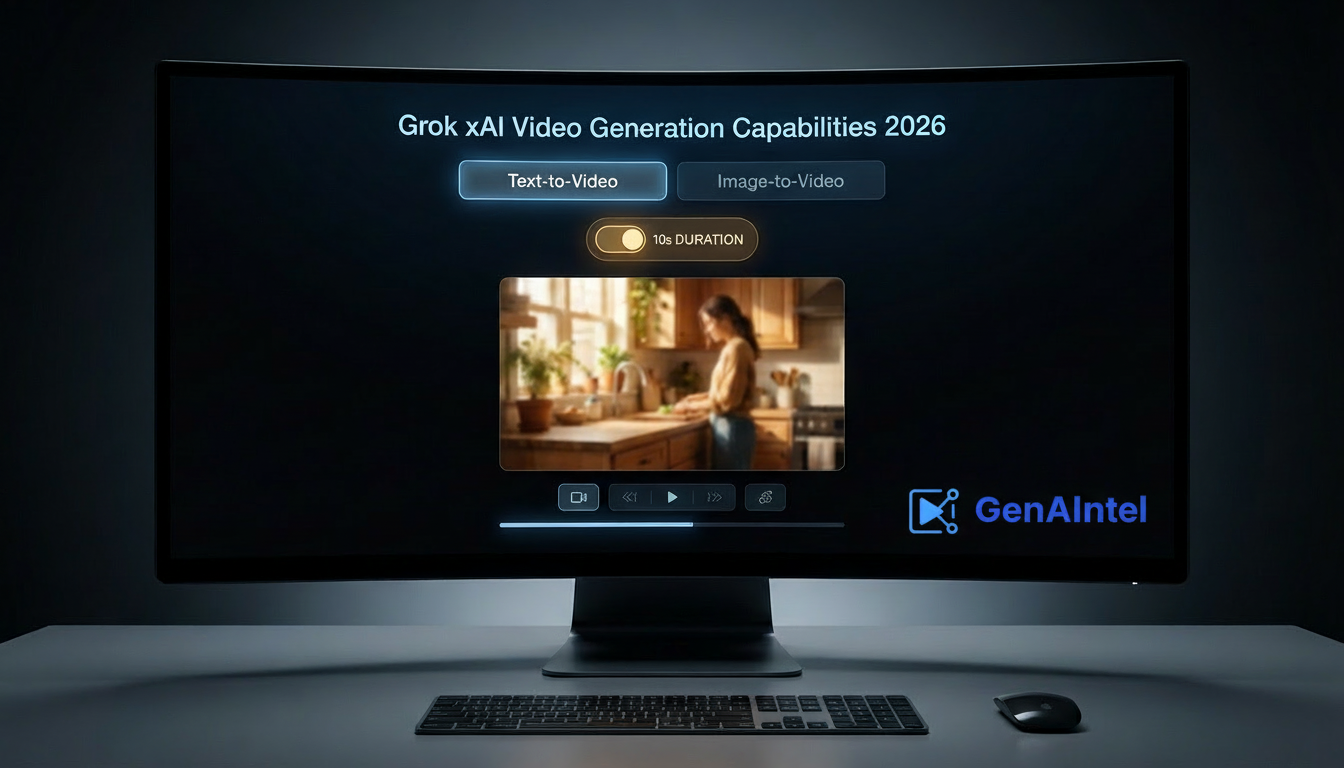
Summary of Grok xAI video generation capabilities in February 2026
Video Features
- Text-to-video (prompt → video): You describe a scene in plain language and Grok Imagine generates a video clip from scratch.
- Image-to-video (image → video): Start from a still image (your own photo or an AI image), then animate it with motion, atmosphere, and camera movement while keeping the original look.
- Prompt-based video edits (video → video): It supports modifying an existing clip with instructions (e.g., change weather, adjust mood, restyle), though availability depends on where you access Grok Imagine.
- Consistency via image-to-video: If you want the same person, outfit, or composition, image-to-video is typically the most reliable approach because the still image anchors everything.
Speed and Iteration
- Fast iteration workflow: Grok Imagine is built for quick tries—small prompt changes (lighting, mood, camera, one key detail) can drastically improve results without starting over conceptually.
Audio Features
- Native audio (sound included): Grok Imagine can generate video with sound built in; 1.0 delivers dramatically better audio—prompt for ambience, sound effects, and short dialogue without adding audio later.
- Audio that matches the scene: When native audio is enabled on a platform, the sound can align with what’s happening—like footsteps matching a walk, wind matching a mountain scene, or kitchen sounds matching a cooking moment.
- Short dialogue support: You can add a brief spoken line (a sentence or a few words) and specify tone like “whisper,” “excited,” or “urgent” so it fits within short clips.
- Multiple voices in one clip: Some implementations support more than one speaker, so you can write two short lines (e.g., “Wait—listen.” “Run!”) with distinct voices.
Video Length and Format
- Video length controls: Grok Imagine 1.0 supports up to 10-second clips; short clips (around 6–10 seconds) are the sweet spot for smooth results and social sharing.
- Aspect ratio options: Create videos formatted for where you’ll post them—horizontal (YouTube), vertical (Reels/TikTok), or square.
- Resolution options: Grok Imagine 1.0 supports 720p; platforms may offer different quality levels (faster previews vs cleaner final output).
- Cinematic camera direction: Prompts that specify camera moves (slow push-in, gentle pan, handheld feel) often produce more “filmic” clips than generic prompts.
- Style direction: You can guide the look with style cues (documentary, romantic, cozy, vintage film, commercial ad) and keep that style consistent across outputs.
Deep dive into Grok Imagine capabilities in 2026:
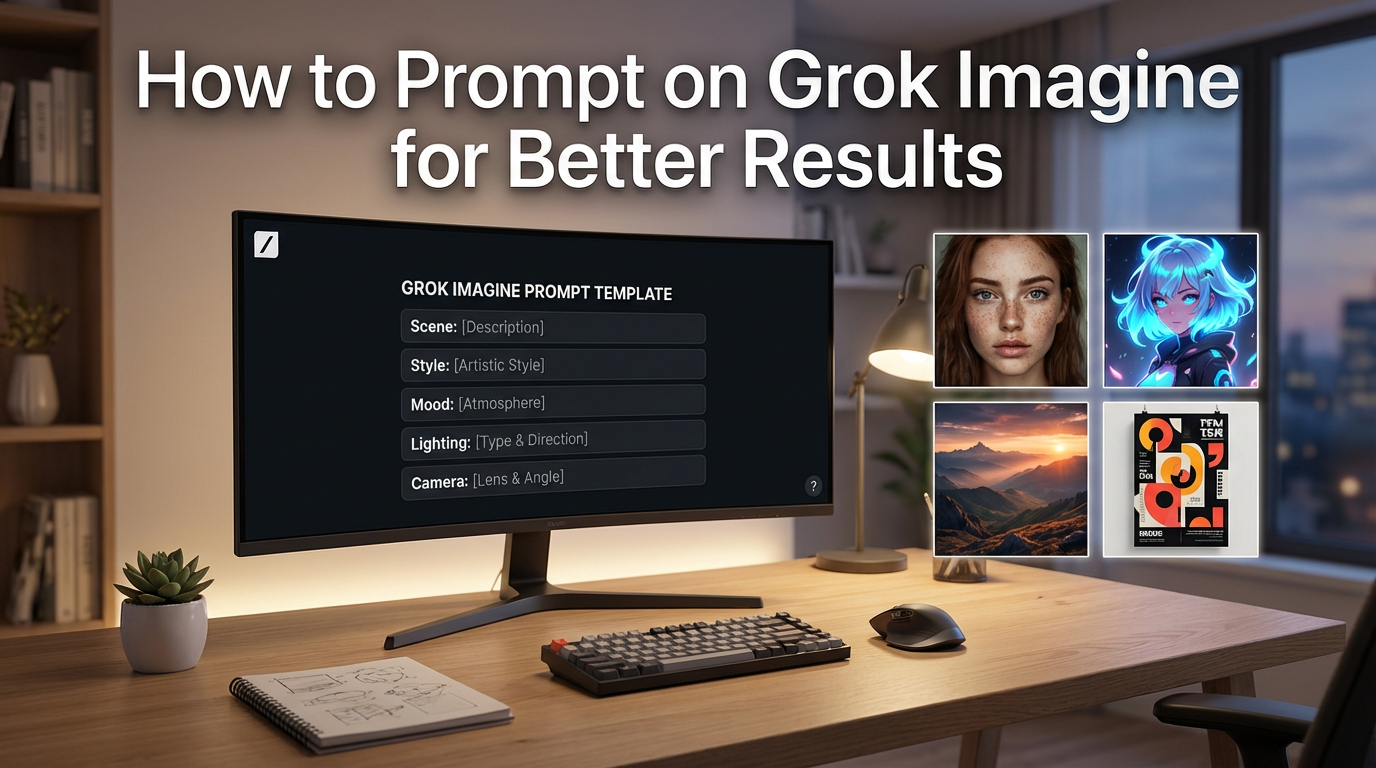
If you want broader Grok Imagine context (images + videos + workflows), see our overview: Grok Imagine xAI guide. If you want deeper prompt craft (especially cinematic language), see: How to prompt Grok Imagine.
- Text-to-video: generate a short clip directly from a prompt (scene, action, camera, lighting).
- Image-to-video: animate a still image into a short clip with controlled motion and atmosphere.
- Iteration loop: re-run with prompt tweaks to refine movement, composition, and mood.
- Video editing (platform-level capability): prompt-based edits to an input video, documented by xAI.
Grok Imagine video prompts you can run on GenAIntel
Run these Grok Imagine video prompts on GenAIntel
Use the examples from this guide—text-to-video, image-to-video, 8-second clips—in one place with 100+ other models.
Example 1: Nature adventure mini-scene
8-second 16:9 cinematic wide shot of a couple hiking along a mountain trail at sunrise. Golden light spills over the ridge, wind moves grass and jackets subtly, distant birds glide across the sky. Slow stabilized pan, warm color grade, natural realism, gentle film grain, smooth motion. AUDIO: light wind, footsteps on gravel, a few distant birds, one short line spoken softly: 'We made it—wow.'Example 2: Fantasy RPG Key Art Frame
Cinematic key art frame for a fantasy RPG: an adventurer stands at the edge of a cliff overlooking an ancient floating castle above a stormy sea, dramatic clouds, lightning far in the distance, warm torch light on the character, ultra-detailed. Generate an 8-second 16:9 cinematic shot: slow camera push-in toward the adventurer, cape and hair gently moving in the wind, clouds drifting, subtle lightning flicker illuminating the castle, sea mist rolling below, smooth motion, epic atmosphere.Example 3: Cozy kitchen food moment
8-second 16:9 cinematic close-up of two hands gently pulling apart a warm cinnamon roll on a wooden table. Steam rises, icing stretches slightly, crumbs fall naturally. Soft morning window light, shallow depth of field, slow camera push-in, cozy home kitchen mood, realistic textures, smooth motion. AUDIO: soft room tone, faint kettle hiss in the background, gentle pastry tear sound, a quiet satisfied whisper: 'Perfect… look at that.'Example 4: Video game trailer-style
8-second 16:9 video game trailer-style shot set in a medieval castle courtyard at dusk. A cloaked thief sprints past stone arches while guards give chase in the background. Dust kicks up, torches flicker, camera tracks smoothly at shoulder height, dramatic but realistic lighting, crisp motion, cinematic pacing. AUDIO: fast footsteps, armor clinks, urgent shouts echoing: 'Stop him!' 'This way!' plus torch crackle and a quick breathy mutter from the thief: 'Not today.'How to use these prompts on GenAIntel
- Select Grok Imagine video generation in your GenAIntel model list.
- Set duration to 8 seconds (enabled on GenAIntel).
- Generate 2–3 variations by changing only one factor (lighting OR camera OR action).
- For more control, generate a reference image first and switch to image-to-video for consistent framing and identity.
- Save your best prompts as templates for repeatable results.
Run these Grok Imagine video prompts on GenAIntel
Use the examples from this guide—text-to-video, image-to-video, 8-second clips—in one place with 100+ other models.
How to get better results with Grok Imagine video prompts
- Keep clips simple: 1 main subject + 1 primary action + 1 camera move.
- Use “cinematic shot” language: wide shot, close-up, tracking, slow push-in, static tripod, etc.
- Describe lighting and time-of-day: morning window light, golden hour, overcast, candlelight.
- Avoid too many simultaneous instructions (especially multiple scene changes).
- If motion looks unstable, reduce complexity: remove fast pans, reduce the number of moving objects, simplify action.