Does Grok generate images in 2026?
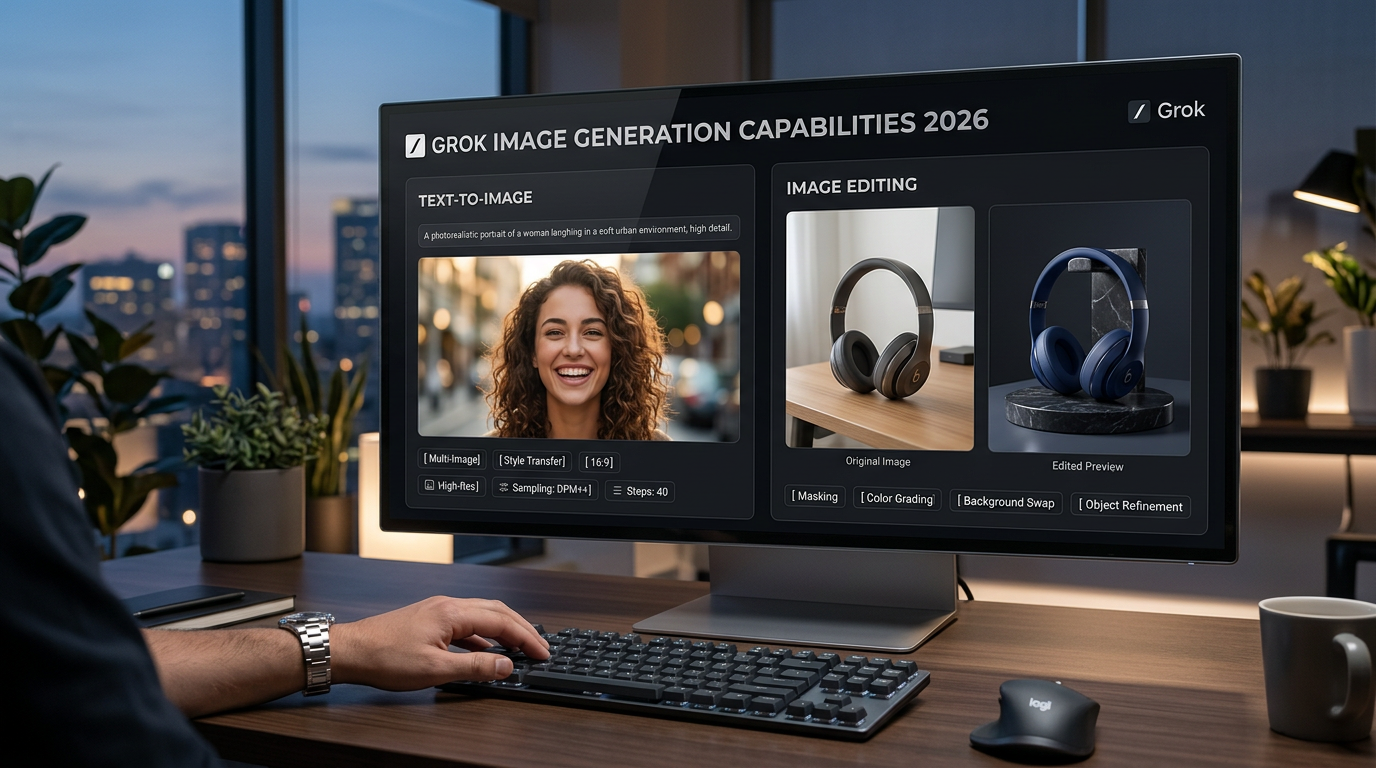
Yes. As of March 2026, xAI’s official image documentation shows that Grok Imagine can generate images from text prompts, edit existing images with natural language, combine multiple input images in one edit workflow, and refine outputs across multiple turns. In practice, that makes Grok relevant for more than one-shot image creation: it can be used for concept generation, controlled edits, reference blending, and style-driven iteration in one workflow.
This guide explains the image side of Grok Imagine in a focused way: what it can do, what it does especially well, where it still needs careful prompting, and how image generation differs from image editing.
For broader product context across both images and videos, see the Grok Imagine xAI guide. For prompt-writing tactics that apply across Grok workflows, see How to Prompt Grok Imagine.
Current Grok image capabilities at a glance (March 2026)
- Text-to-image: yes — generate a new image from a plain-language prompt.
- Single-image editing: yes — upload or reference one image and edit it with instructions.
- Multi-image editing: yes — xAI’s image docs show support for using up to three input images in one edit workflow.
- Style transfer / restyling: yes — Grok Imagine supports changing the visual treatment of an image with prompt instructions.
- Multi-turn refinement: yes — you can chain edits together so each output becomes the input for the next pass.
- Aspect-ratio control: yes — the docs describe aspect-ratio controls for generation and certain edit workflows.
- Batch generation: yes — the image generation docs mention batch generation support when you want several outputs at once.
- Image understanding: separate capability — useful conceptually, but this guide is focused on creation and editing workflows.
That combination makes Grok Imagine more interesting than a basic one-shot image generator. Its real strength is not only producing a picture from a prompt, but also letting creators improve a base image through follow-up edits, merge references, and steer style without rebuilding the entire scene from scratch.
Try Grok Imagine image generation on GenAIntel
Run text-to-image and image editing with Grok Imagine in the same workspace as 100+ other image and video models.
What Grok is best at for image creation
1) Fast text-to-image concepting
Grok works well when you need to move from an idea to a visual quickly. That includes ad mockups, product concepts, social visuals, thumbnails, character looks, and environmental concepts. A good Grok workflow is to get the broad composition, lighting, and mood right first. Then you switch into edit mode to tighten details rather than rewriting the entire prompt from scratch every time.
2) Photoreal and polished commercial aesthetics
Grok Imagine appears especially well suited to photoreal and polished commercial-looking visuals. That matters for teams creating product shots, portraits, lifestyle ads, social media assets, or premium-looking brand imagery. When prompts specify subject, lighting, camera feel, composition, and finish, the model has a much better chance of producing outputs that look intentional rather than generic.
3) Prompt-based editing without rebuilding the scene
This is where Grok becomes more useful than a simple generator. If the base image is close but not perfect, the model can be instructed to change only the outfit, only the background mood, only the lighting, or only a product detail. That is often more efficient than starting over, and it creates a clearer workflow for image tasks that need revision rather than full regeneration.
4) Multi-image editing for combined references
One of the strongest current differentiators in the official docs is the ability to use up to three input images in an edit. This makes Grok more relevant for workflows like: combine subject from image A with scene from image B, or borrow product shape from one image and visual mood from another.
What Grok image editing can do right now
Image editing is one of the most practical parts of the Grok workflow. Instead of treating editing as a vague feature, it helps to think about the specific jobs it can handle well: local scene changes, style adjustments, composition-preserving revisions, and reference-driven transformations.
- Selective edits: change one part of the image while keeping the rest stable, such as outfit color, object details, or background mood.
- Restyling: turn a realistic image into a sketch, anime frame, premium ad look, watercolor, or other visual treatment.
- Reference blending: combine up to three input images in one edit request for compositing or concept synthesis.
- Iterative refinement: take output 1 into output 2 into output 3 until the scene reaches the look you want.
Generate-and-edit Workflow rather than a one-step generator
One of the strongest ways to use Grok for images is as a generate-and-edit workflow rather than a one-step generator. The process is simple: create a strong base image first, identify what is close and what is still wrong, then use targeted edits to improve the result without discarding the composition.
That workflow is especially useful for product marketing, portrait refinement, mood changes, concept art development, and ad-style creative. It reduces wasted generations, keeps more of the good parts of an image, and makes iteration feel closer to creative direction than random regeneration.
Prompt patterns that work well for Grok images
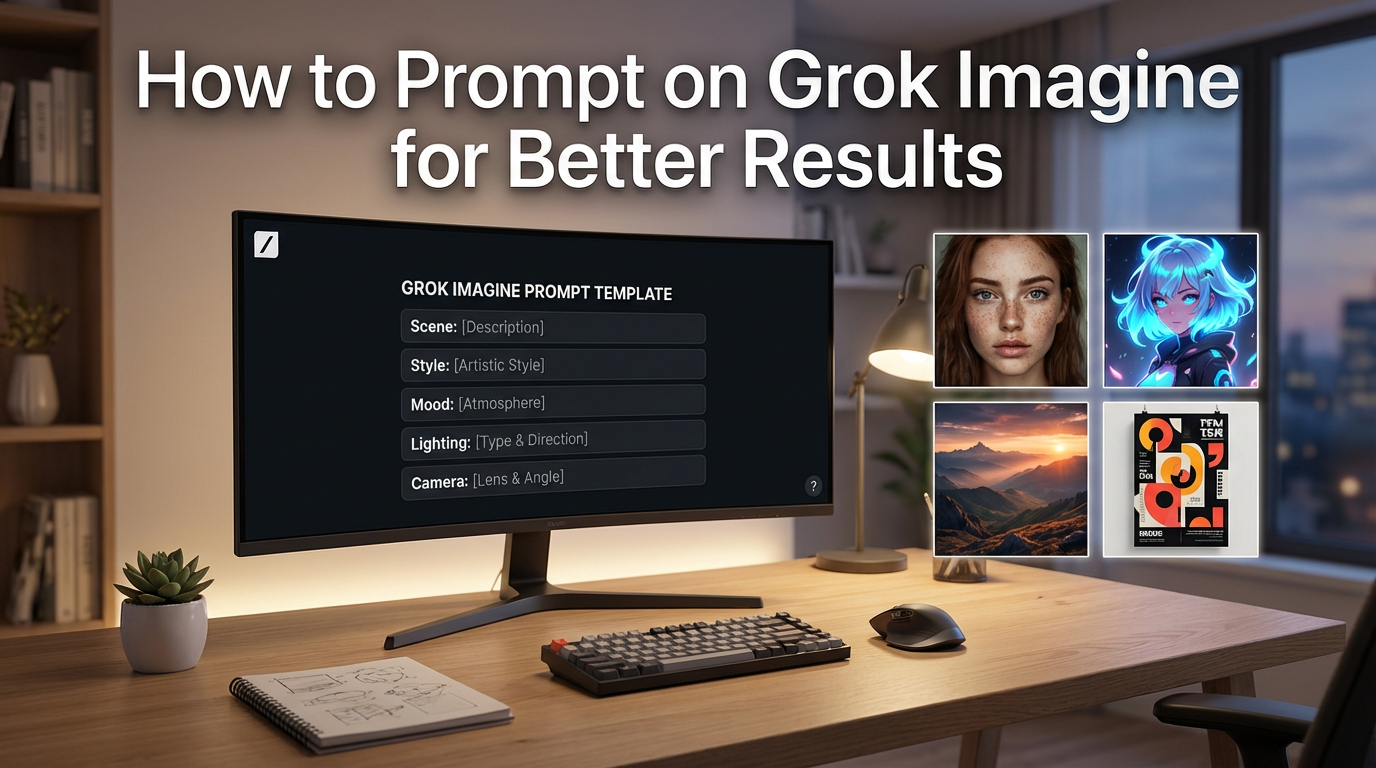
The image side of Grok responds well to structured prompts. The strongest pattern is: subject + setting + camera/composition + lighting + visual style + constraints. When editing, add a lock statement so the model knows what must stay unchanged. That gives you more controlled results and also helps keep the article practical, not just descriptive.
Example 1: Text-to-image prompt for a luxury fashion campaign
Photoreal high-fashion campaign image of a confident woman model walking down a luxury runway in an elegant black evening gown with metallic details, soft glowing spotlights, blurred audience on both sides, cinematic fashion week atmosphere, sharp facial details, glossy skin, dramatic movement in the fabric, premium editorial photography look, ultra-realistic, 16:9.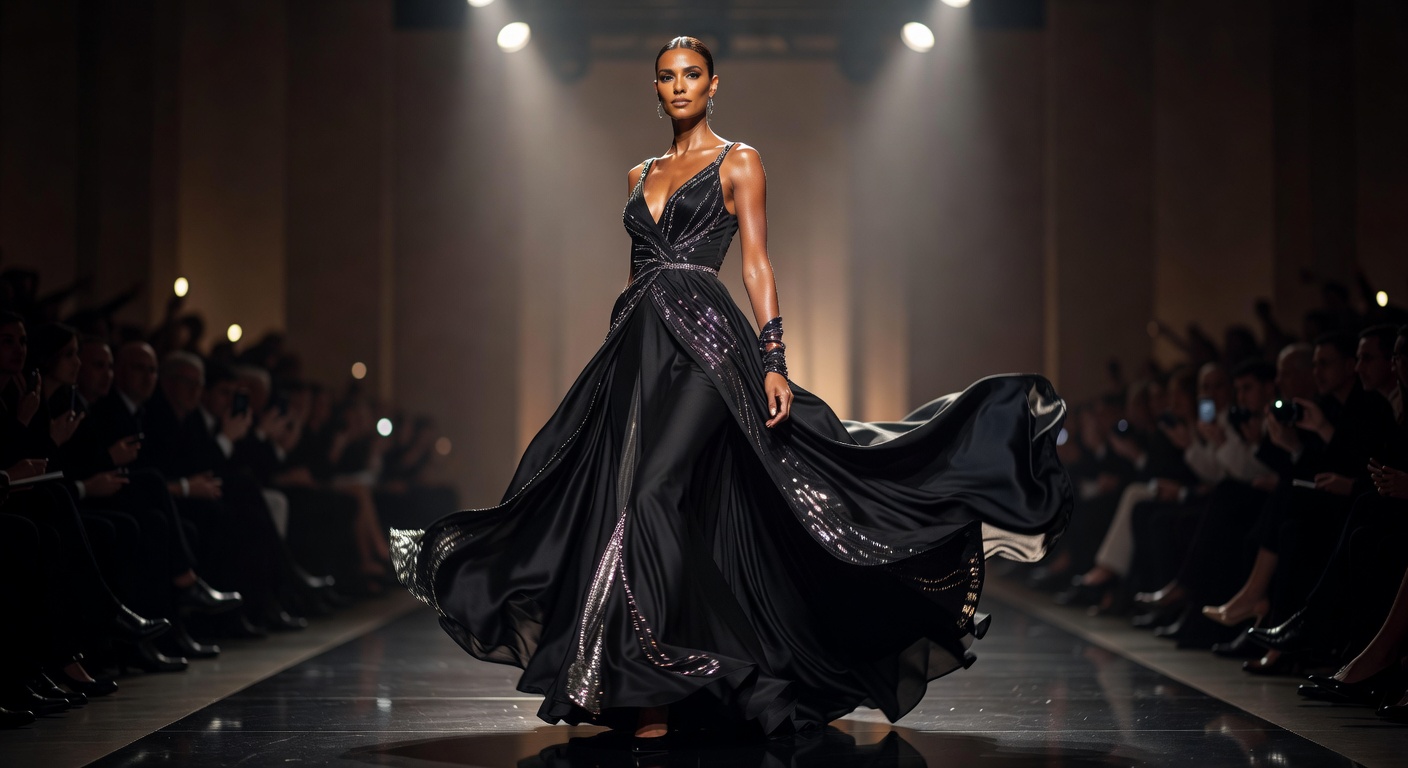
Example 2: Single-image edit prompt
Keep the exact same woman, pose, camera angle, and composition. Change only the styling and environment into a luxury street-fashion campaign in Paris during golden hour, with a chic beige trench coat, designer sunglasses, soft warm light, elegant storefront reflections, and polished influencer photography aesthetics. Preserve facial identity, body proportions, and realism.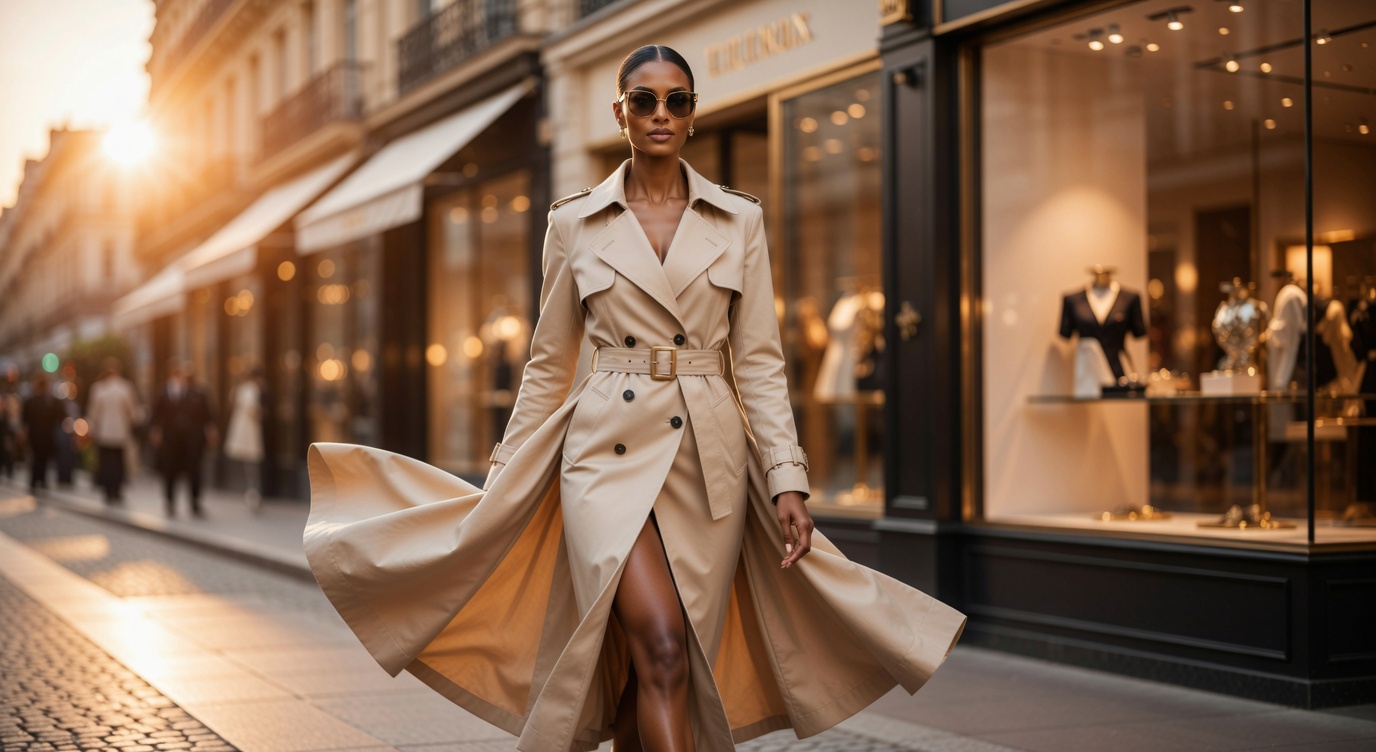
Example 3: Multi-image edit idea
Use the woman from the first image and place her naturally into the runway scene from the second image. Keep her face, body proportions, and pose realistic, match the stage lighting and shadows, and make the final image look like an authentic fashion week editorial photograph with a premium magazine quality finish.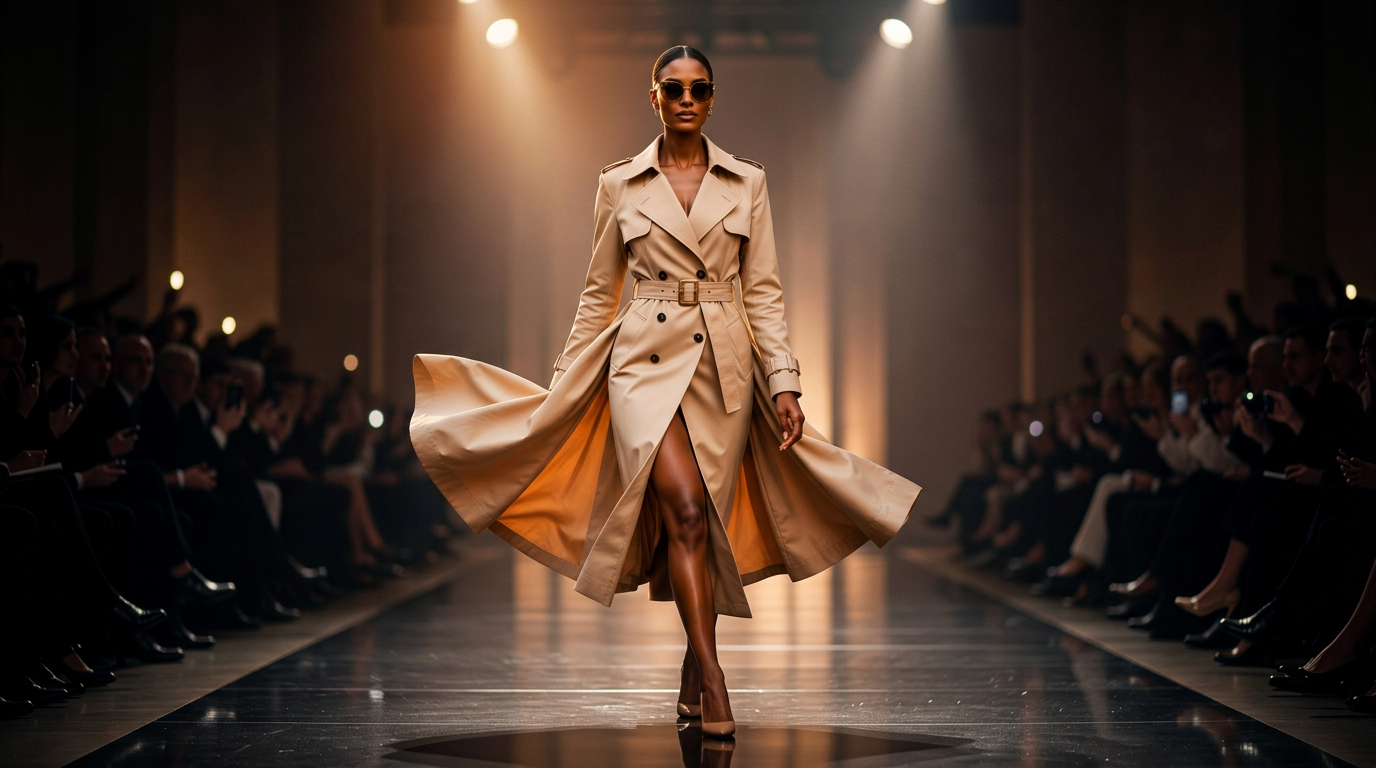
Example 4: Style transfer prompt
Transform this image into a dramatic high-fashion editorial style with rich contrast, elegant cinematic lighting, luxurious color grading, soft skin detail, subtle film grain, and a premium Vogue-inspired magazine aesthetic while preserving the same subject, composition, facial identity, and proportions.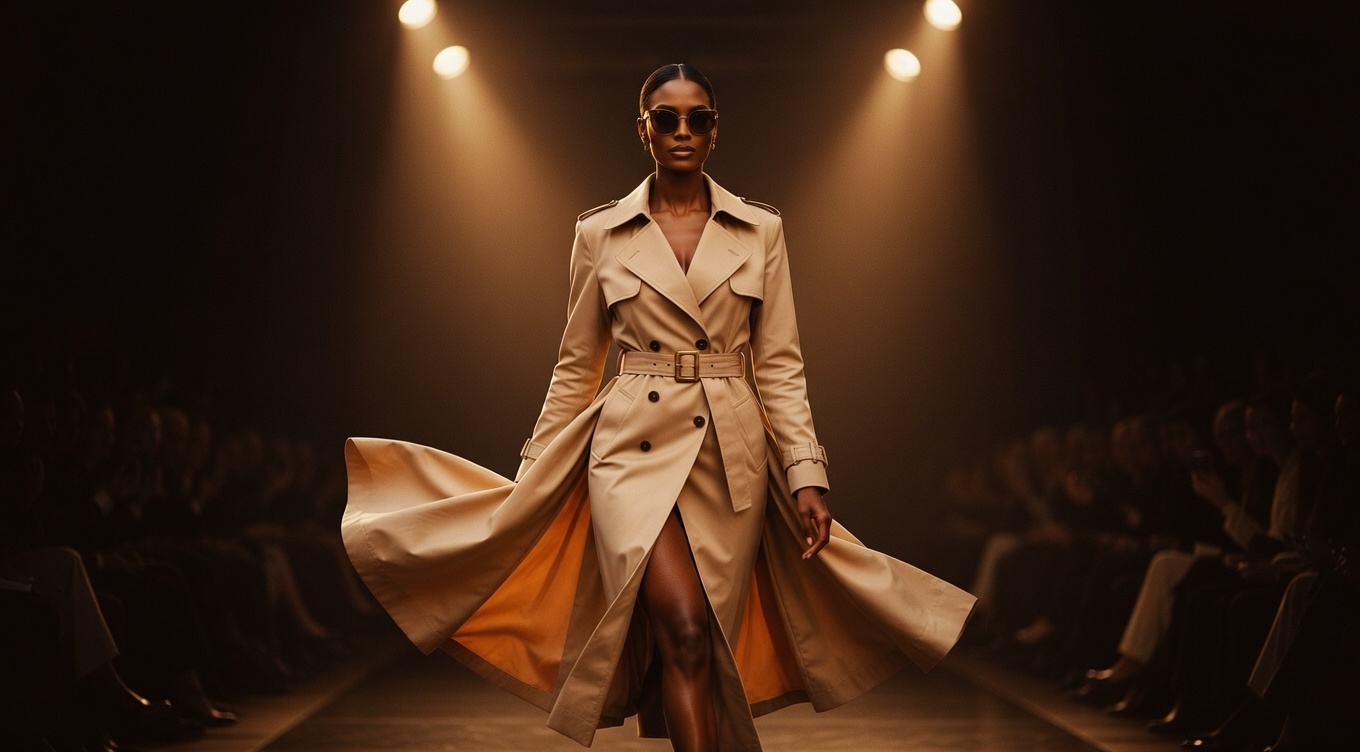
Where Grok still needs careful prompting
Composition preservation
Image editing models often need explicit guardrails if you want to preserve the composition. When using Grok for edits, tell it what must stay locked: camera angle, crop, subject pose, object geometry, face, and background layout. A vague edit prompt invites broader changes than you may want.
Text in images
Text rendering has improved across the image-model market, but brand-safe typography still deserves extra caution. If the image needs exact packaging text, UI labels, or ad copy, use a prompt that keeps the request narrow and test more than one variation. For production work, it is still smart to treat AI-rendered typography as something you verify rather than assume is perfect.
Identity and consistency
If you need the same person, outfit, or product identity across many images, reference-based editing is usually safer than repeatedly generating from scratch. Grok’s multi-image and multi-turn workflows help here. The workflow logic is simple: create or upload a good anchor image first, then edit from that anchor instead of hoping a fresh text-only prompt recreates the same subject every time.
Over-editing
A common failure mode in image editing is asking for too many changes at once. Grok is more likely to preserve structure when you make one meaningful change per pass. This is exactly why xAI’s docs featuring multi-turn editing matter so much. The official product guidance itself implies that chaining edits is the right workflow, not overloading one huge instruction block.
How to get better Grok image results on GenAIntel
- Start with a strong base image before doing heavy edits.
- When editing, specify what must stay unchanged as clearly as what must change.
- Use one major change per pass for better structure preservation.
- If consistency matters, keep reusing the same anchor image rather than restarting from text-only generation.
- For complex composites, think in references: subject source, environment source, and style source.
- For social or landing-page use, set aspect ratio intentionally rather than leaving framing to chance.
- Save successful prompts as reusable templates; most teams repeat the same visual jobs again and again.
Run Grok image prompts on GenAIntel
Test Grok Imagine for text-to-image and editing, then compare it side by side with 100+ other models in the same workspace.
FAQ
Does Grok generate images?
Yes. Grok Imagine supports text-to-image generation, so you can create a new image directly from a prompt.
Can Grok edit images?
Yes. xAI’s official image docs show single-image editing, style transfer, and iterative multi-turn edits using natural-language instructions.
Can Grok combine more than one image in an edit?
Yes. The current docs describe multi-image editing with up to three input images, which is useful for reference blending and concept compositing.
Is Grok good for photoreal images?
It is positioned well for photoreal and commercial-looking outputs, especially when the prompt is specific about subject, lighting, composition, and finish. Results improve further when you refine with edits instead of expecting one perfect first pass.
What is the difference between Grok image generation and Grok video generation?
Image generation focuses on creating and editing still images. Video generation focuses on moving scenes, image-to-video workflows, and video-specific editing tasks. The two areas can complement each other, but they solve different creative jobs.
Final takeaway: where Grok image generation is strongest in 2026
The clearest opportunity is around Grok image generation and image editing capabilities in 2026. Grok is no longer just interesting as a new model name; it is increasingly useful as a workflow for generating a strong base image, refining it through edits, and combining references with more control than a simple one-pass generator.
The practical takeaway is simple: Grok is strongest when it is used as a two-step image workflow. Start with a solid base image, then refine it through focused edits, references, and controlled prompt changes. That approach usually produces more reliable results than trying to force every change into a single prompt.